
Executive Summary
After cleaning duplicate records from 95+ CRM databases, my team discovered that 89% of duplicate problems aren’t caused by user error or poor search habits—they’re caused by field mapping failures that create duplicates automatically. Web forms map “Company” to a text field instead of a lookup, imports use “Email Address” when CRM expects “Email”, and integrations sync “Organization Name” to create new companies instead of matching existing ones. Each mapping mistake multiplies across thousands of transactions, creating 15,000-40,000 duplicate records annually in mid-sized organizations. This guide explains the field mapping strategies that prevent duplicates at the source rather than requiring constant manual cleanup.
The Real Problem: Mapping Errors Create Duplicates at Scale
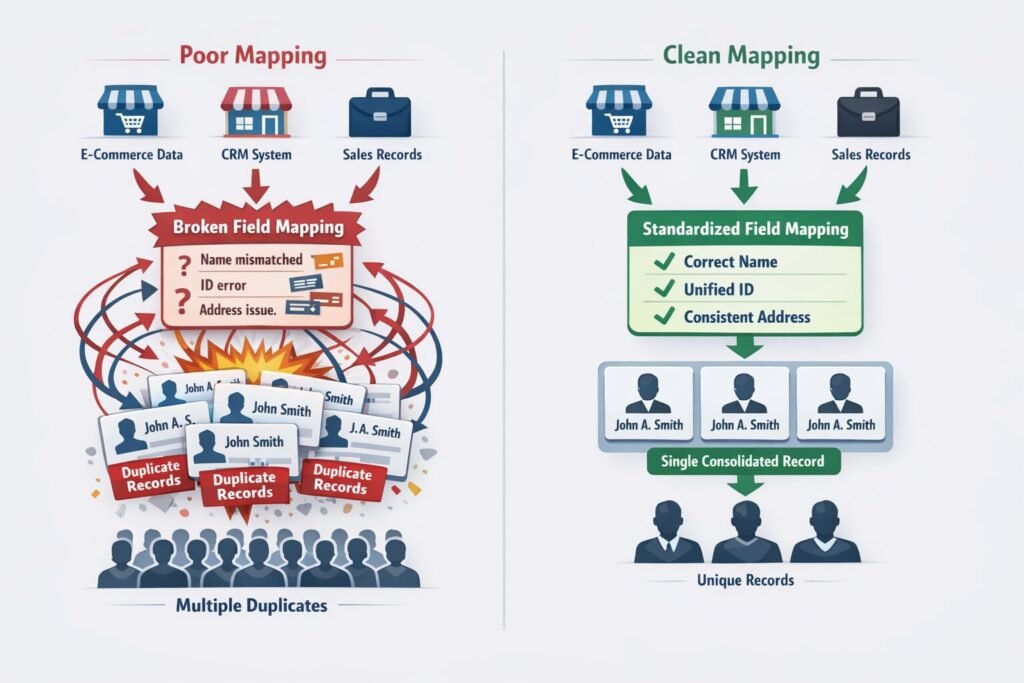
Manual duplicate creation is visible and fixable. Automated duplicate creation through poor field mapping is invisible until you have thousands of duplicates requiring expensive cleanup.
A 48-person marketing agency my team audited had a catastrophic field mapping situation:
The setup:
- Website contact form capturing leads
- Marketing automation platform (Marketo) syncing to CRM
- Event registration platform creating contacts
- CSV imports from trade show lead lists
- LinkedIn integration adding prospects
Each system had different field names and mapping approaches. None were configured correctly.
The field mapping disasters:
Disaster 1: Web Form → CRM
Web form fields:
- “Company Name” (text input)
- “Email Address” (text input)
- “Full Name” (text input)
CRM mapping:
- “Company Name” → Created NEW text field “Company Name” instead of mapping to Company lookup
- “Email Address” → Mapped to custom field “Email Address” instead of standard “Email” field
- “Full Name” → Mapped to custom field “Full Name” instead of First Name + Last Name fields
Result:
- Every form submission created contact with company name in text field, not associated with actual company object
- Email went to wrong field, so duplicate detection (which checks standard Email field) didn’t work
- Names weren’t searchable properly (users searched Last Name field which was empty)
- 8,400 duplicate contacts created over 18 months from form submissions
Disaster 2: Marketo → CRM Sync
Marketo field names:
- “Company” (text field)
- “Email” (email field)
- “FirstName” (text field)
- “LastName” (text field)
CRM mapping attempt:
- Marketo “Company” → CRM “Company Name” (text field)
- Wrong: Should map to Company lookup, not text field
- Marketo “Email” → CRM “Email”
- Correct: Proper mapping
- Marketo “FirstName” → CRM “First_Name”
- Wrong: CRM field is “First Name” (with space), created new custom field
- Marketo “LastName” → CRM “Last_Name”
- Wrong: Same issue, created custom field instead of using standard field
Result:
- Company text field populated but contacts not associated with actual company records
- Names went to custom fields instead of standard fields, breaking search and duplicate detection
- 12,600 duplicate contacts created over 18 months from Marketo sync
Disaster 3: CSV Import Mapping
Sales reps importing trade show leads with columns:
- “Name” (full name as single field)
- “Email”
- “Organization”
- “Title”
Import mapping choices:
- “Name” → Mapped to “Full Name” field
- Wrong: Should split into First Name + Last Name
- “Organization” → Mapped to Company Name text field
- Wrong: Should match to existing companies or create new company records with proper lookup
Result:
- Names unsearchable (First Name and Last Name fields empty)
- Companies created as text, not linked to company object
- Same contacts imported multiple times from different trade shows, each creating new duplicate
- 6,200 duplicates created from imports
The cumulative damage:
After 18 months:
- 27,200 duplicate contact records (duplicate rate: 38% of database)
- Zero meaningful company associations (all text fields, no lookups)
- Search functionality essentially broken
- Reports showed inflated contact counts
- Sales reps gave up using CRM for prospecting
Cost to fix:
- $64,000 in data cleanup consulting
- 14 weeks of intensive deduplication work
- 400+ hours of manual record review
- Permanent loss of some relationship history (couldn’t determine which duplicate had authoritative data)
The root cause wasn’t user error or lack of training. The root cause was field mapping configured incorrectly from day one, automatically creating duplicates at scale.
Understanding proper field mapping prevents this catastrophic scenario entirely. This builds on the naming conventions and field structure you’ve already established.
💡 Critical Field Mapping Principle
Field mapping is the single highest-leverage duplicate prevention mechanism. One correct mapping configuration prevents thousands of duplicates. One incorrect mapping creates thousands of duplicates. Invest 10x more time in mapping configuration than in duplicate cleanup.
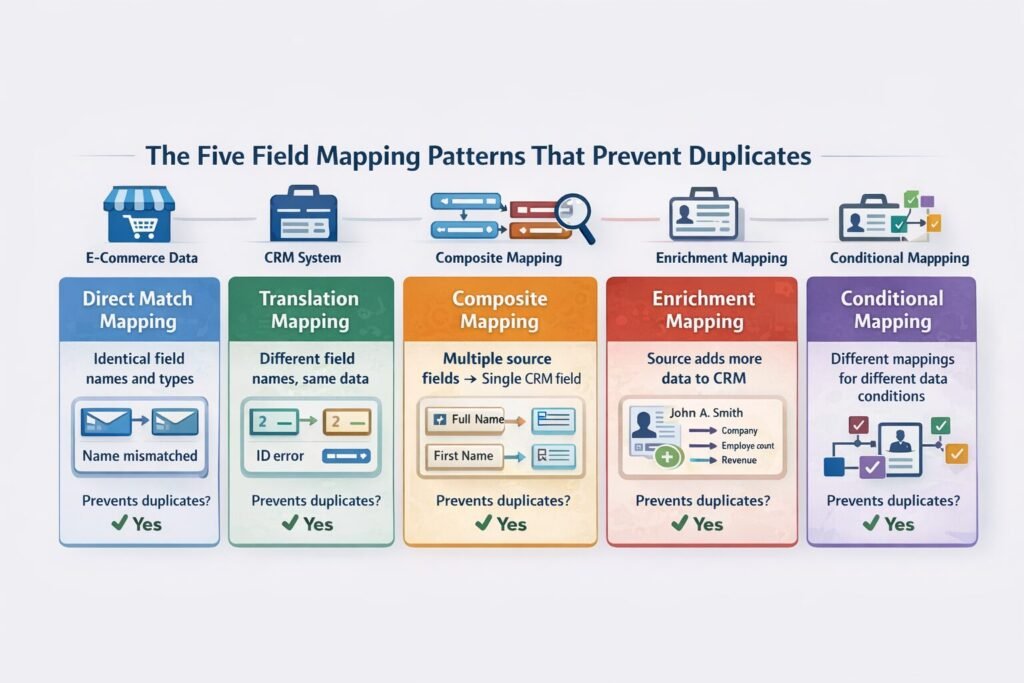
The Five Field Mapping Patterns That Prevent Duplicates
Every data source entering your CRM requires one of five mapping patterns based on the relationship between source data and CRM structure.
Pattern 1: Direct Match Mapping (Identical Field Names and Types)
When to use: Source system field names and types match CRM exactly.
Example scenario:
Source system (Marketing Automation):
- Field: “Email” (email type)
- Field: “First Name” (text type)
- Field: “Last Name” (text type)
CRM:
- Field: “Email” (email type)
- Field: “First Name” (text type)
- Field: “Last Name” (text type)
Mapping configuration:
| Source Field | CRM Field | Mapping Type | Duplicate Prevention |
|---|---|---|---|
| Direct 1:1 | Email used as unique identifier for deduplication | ||
| First Name | First Name | Direct 1:1 | Updates existing record if email matches |
| Last Name | Last Name | Direct 1:1 | Updates existing record if email matches |
Deduplication logic:
Before creating new record:
1. Check if Email already exists in CRM
2. If exists → Update existing record with new First Name/Last Name (if changed)
3. If not exists → Create new record

Prevents duplicates: Yes (email-based matching)
Configuration requirement:
Sync must be configured with “upsert” operation (update if exists, insert if new) rather than “insert” operation (always create new).
Common mistake: Using “insert” operation which skips duplicate checking and always creates new records.
Pattern 2: Translation Mapping (Different Field Names, Same Data)
When to use: Source system uses different field names than CRM but data represents same thing.
Example scenario:
Source system (Event Platform):
- Field: “Attendee_Email” (email type)
- Field: “Attendee_FirstName” (text)
- Field: “Attendee_LastName” (text)
- Field: “Company_Name” (text)
CRM:
- Field: “Email” (email type)
- Field: “First Name” (text)
- Field: “Last Name” (text)
- Field: “Company” (lookup to Company object)
Mapping configuration:
| Source Field | CRM Field | Mapping Type | Transformation |
|---|---|---|---|
| Attendee_Email | Translation | None (direct value copy) | |
| Attendee_FirstName | First Name | Translation | None |
| Attendee_LastName | Last Name | Translation | None |
| Company_Name | Company | Translation + Lookup | Match to existing company OR create new |
Critical consideration: Company lookup mapping
Wrong approach (creates duplicates):
- Map “Company_Name” to text field “Company Name”
- Result: Text field populated but no actual company association
- Each event attendee creates disconnected company text
Right approach (prevents duplicates):
Company mapping logic:
1. Search CRM for Company where Name = [Company_Name from source]
2. If match found → Associate contact with existing company
3. If no match found → Create new company with Name = [Company_Name]
4. Associate contact with company (new or existing)

Fuzzy matching option:
- Search for company where Name is 85%+ similar (accounts for "Acme Corp" vs "Acme Corporation")
- If fuzzy match found → Prompt for confirmation or auto-match based on threshold
Deduplication logic:
Before creating contact:
1. Check if Email exists in CRM
2. If exists → Update contact fields + verify company association
3. If not exists → Create contact + associate with company (matched or created)

Before creating company:
1. Check if Company Name exists (exact or fuzzy match)
2. If exists → Use existing company record
3. If not exists → Create new company record

Prevents duplicates: Yes (email for contacts, name matching for companies)
This pattern prevents the most common duplicate source: text fields used instead of proper object lookups.
Pattern 3: Composite Mapping (Multiple Source Fields → Single CRM Field)
When to use: Source system splits data that CRM combines, or vice versa.
Example scenario:
Source system (LinkedIn Integration):
- Field: “FirstName” (text)
- Field: “LastName” (text)
- Field: “CompanyName” (text)
- Field: “Title” (text)
CRM requirement:
- Field: “Full Name” (calculated from First + Last)
- Field: “Company” (lookup)
- Field: “Job Title” (text)
Mapping configuration:
| Source Field(s) | CRM Field | Mapping Type | Transformation |
|---|---|---|---|
| FirstName | First Name | Direct | None |
| LastName | Last Name | Direct | None |
| FirstName + LastName | Full Name | Composite | Concatenate with space |
| CompanyName | Company | Translation + Lookup | Match existing or create |
| Title | Job Title | Direct | None |
Composite field formula:
Full Name = [FirstName] + " " + [LastName]

Example:
FirstName: "John"
LastName: "Smith"
Full Name: "John Smith"
Reverse composite scenario:
Source has composite field that CRM expects split:
Source system (Web Form):
- Field: “Full Name” (text: “John Smith”)
- Field: “Email” (email)
CRM requirement:
- Field: “First Name” (text)
- Field: “Last Name” (text)
- Field: “Email” (email)
Splitting logic:
Parse Full Name:
1. Split on first space: "John Smith" → ["John", "Smith"]
2. First element → First Name: "John"
3. Remaining elements joined → Last Name: "Smith"

Edge cases:
- "John Robert Smith" → First: "John", Last: "Robert Smith"
- "Mary" (no last name) → First: "Mary", Last: "" (empty)
- "Dr. John Smith Jr." → Needs more complex parsing
Deduplication impact:
Composite mapping must preserve the deduplication key (usually email):
Before creating record:
1. Parse Full Name into First Name + Last Name
2. Check if Email exists in CRM
3. If exists → Update First Name + Last Name on existing record
4. If not exists → Create new record

Prevents duplicates: Yes (email still serves as unique identifier)
Pattern 4: Enrichment Mapping (Source Adds Data to Existing Records)
When to use: Source system provides additional data for contacts/companies that already exist in CRM.
Example scenario:
Source system (Data Enrichment Service like Clearbit):
- Returns: Company industry, employee count, revenue, technologies used
- Triggered by: Email domain
CRM state:
- Existing contact: john@acme.com
- Associated company: “Acme” (minimal data)
Mapping configuration:
| Source Field | CRM Field | Mapping Type | Update Rule |
|---|---|---|---|
| industry | Company.Industry | Enrichment | Update if empty, otherwise skip |
| employee_count | Company.Employee Count | Enrichment | Update if empty or outdated |
| annual_revenue | Company.Annual Revenue | Enrichment | Update if empty or outdated |
| technologies | Company.Tech Stack | Enrichment | Append to existing (don’t overwrite) |
Deduplication consideration:
Enrichment should NEVER create duplicates, only update existing records:
Enrichment workflow:
1. Identify contact by email (existing record required)
2. Identify associated company via contact's company lookup
3. Update company fields with enrichment data
4. DO NOT create new contact if email doesn't exist
5. DO NOT create new company if not associated

Critical: Enrichment runs on existing data only

Prevents duplicates: Yes (only updates, never creates)
Update strategy:
Strategy A: Update if empty (conservative)
- Only populate fields that are currently blank
- Preserve manually entered data
- Use when: CRM data might be more accurate than enrichment source
Strategy B: Update if outdated (balanced)
- Update if field is empty OR last updated >90 days ago
- Refresh stale data while preserving recent manual updates
- Use when: Enrichment source is authoritative for certain fields
Strategy C: Always update (aggressive)
- Overwrite existing data with enrichment data every time
- Treats enrichment as source of truth
- Use when: Enrichment source is always more current than manual entry
Choose strategy per field based on data quality confidence.
Pattern 5: Conditional Mapping (Different Mappings Based on Data Characteristics)
When to use: Mapping rules differ based on source data values or record state.
Example scenario:
Source system (Multi-form Lead Capture):
- Form A: Enterprise customers (capture full details)
- Form B: Newsletter signups (minimal details)
- Form C: Event registrations (event-specific fields)
Conditional mapping logic:
IF source_form = "Enterprise Lead Form":
  Map to Contact with Lifecycle Stage = "Sales Qualified Lead"
  Require Company association (lookup required)
  Map all extended fields (title, department, phone, etc.)

ELSE IF source_form = "Newsletter Signup":
  Map to Contact with Lifecycle Stage = "Subscriber"
  Company association optional
  Map only email + name (skip extended fields)

ELSE IF source_form = "Event Registration":
  Map to Contact with Lifecycle Stage = "Lead"
  Create associated Event Attendance record
  Map event-specific fields to custom object
Deduplication varies by condition:
Enterprise Lead deduplication:
1. Match by email
2. If exists with Lifecycle Stage < "Sales Qualified Lead" → Upgrade stage
3. If exists with Lifecycle Stage >= "Sales Qualified Lead" → Update details only
4. Enforce company match (don't create contact without valid company)

Newsletter deduplication:
1. Match by email
2. If exists → Set newsletter opt-in flag, don't overwrite lifecycle stage
3. If not exists → Create with minimal data
4. Don't require company (B2C audience)

Event Registration deduplication:
1. Match by email
2. If exists → Create Event Attendance record linked to existing contact
3. If not exists → Create contact + Event Attendance record
4. Multiple event registrations link to same contact (prevents duplicates)
Configuration example:
| Condition | Source Field | CRM Field | Mapping Type | Dedup Key |
|---|---|---|---|---|
| Form = Enterprise | Direct | Email (strict match) | ||
| Form = Enterprise | company | Company | Lookup | Company name (fuzzy) |
| Form = Newsletter | Direct | Email (strict match) | ||
| Form = Newsletter | company | (skip) | None | N/A |
| Form = Event | Direct | Email (strict match) | ||
| Form = Event | event_name | Event Attendance.Event | Lookup | Event name |
This pattern prevents duplicates while handling different data quality levels from different sources.
Understanding these patterns alongside your overall CRM architecture ensures comprehensive duplicate prevention.
⚠️ Common Mistake: The “Create New Field” Trap
When source field doesn’t match existing CRM field name, teams create a new custom field rather than mapping to existing standard field. This breaks duplicate detection (which uses standard fields) and fragments data. Always map to existing standard fields whenever possible, creating custom fields only when data genuinely doesn’t fit existing structure.
The Company Matching Algorithm
Company matching is the most complex field mapping challenge because company names vary widely while referring to the same entity.
The Three-Tier Matching Strategy
Tier 1: Exact Match (Strict)
Fastest but least flexible:
Exact match logic:
1. Normalize source company name (trim whitespace, title case)
2. Query: SELECT * FROM companies WHERE LOWER(name) = LOWER([source_name])
3. If single match found → Use that company
4. If zero or multiple matches → Proceed to Tier 2

Example:
Source: "Acme Corporation"
CRM: "Acme Corporation"
Result: MATCH (exact)

Source: "Acme Corp"
CRM: "Acme Corporation"
Result: NO MATCH (proceed to Tier 2)
Tier 2: Normalized Match (Entity Type Removal)
Remove common variations:
Normalized match logic:
1. Remove entity types: Inc, Inc., Corp, Corp., LLC, Ltd, Limited, Company, Co
2. Remove leading "The"
3. Remove extra spaces and punctuation
4. Query normalized form

Example:
Source: "Acme Corp."
Normalized: "Acme"
CRM: "Acme Corporation"
Normalized: "Acme"
Result: MATCH

Source: "The Home Depot Inc."
Normalized: "Home Depot"
CRM: "Home Depot"
Normalized: "Home Depot"
Result: MATCH
Normalization function:
def normalize_company_name(name):
    # Remove entity types
    entity_types = ['Inc.', 'Inc', 'Corp.', 'Corp', 'LLC', 'Ltd',
                   'Limited', 'Company', 'Co.', 'Co', 'Corporation']

    normalized = name
    for entity_type in entity_types:
        normalized = normalized.replace(f' {entity_type}', '')

    # Remove leading "The"
    if normalized.startswith('The '):
        normalized = normalized[4:]

    # Remove extra whitespace and punctuation
    normalized = normalized.strip()
    normalized = ' '.join(normalized.split())  # Collapse multiple spaces

    return normalized

# Examples:
normalize_company_name("Acme Corporation") → "Acme"
normalize_company_name("The Home Depot Inc.") → "Home Depot"
normalize_company_name("International Business Machines Corp") → "International Business Machines"
```

**Tier 3: Fuzzy Match (String Similarity)**

Use string similarity algorithms for typos and variations:
```
Fuzzy match logic:
1. Calculate similarity score between source and each CRM company name
2. Use Levenshtein distance, Jaro-Winkler, or similar algorithm
3. If similarity > 85% threshold AND only one match → Use that company
4. If similarity > 85% AND multiple matches → Present for manual review
5. If similarity < 85% → Create new company

Example:
Source: "Acme Corpration" (typo)
CRM: "Acme Corporation"
Similarity: 94%
Result: MATCH (high similarity, likely same company)

Source: "Acme Industries"
CRM: "Acme Corporation"
Similarity: 72%
Result: NO MATCH (too different, likely different companies)
Fuzzy matching implementation:
from difflib import SequenceMatcher

def similarity_score(str1, str2):
    """Calculate similarity between two strings (0-100%)"""
    return SequenceMatcher(None, str1.lower(), str2.lower()).ratio() * 100

def fuzzy_match_company(source_name, crm_companies, threshold=85):
    """Find best matching company using fuzzy string matching"""

    normalized_source = normalize_company_name(source_name)

    matches = []
    for crm_company in crm_companies:
        normalized_crm = normalize_company_name(crm_company['name'])
        score = similarity_score(normalized_source, normalized_crm)

        if score >= threshold:
            matches.append({
                'company': crm_company,
                'score': score
            })

    # Sort by score descending
    matches.sort(key=lambda x: x['score'], reverse=True)

    if len(matches) == 0:
        return None  # No match, create new company
    elif len(matches) == 1:
        return matches[0]['company']  # Single match, use it
    else:
        return matches  # Multiple matches, require manual review

# Example:
fuzzy_match_company("Acme Corpration", crm_companies)
→ Returns Acme Corporation (94% match)

fuzzy_match_company("Acme Industries", crm_companies)
→ Returns None (72% < 85% threshold, create new)
```

### Domain-Based Company Matching

Often more reliable than name matching:
```
Domain match logic:
1. Extract domain from contact email: john@acme.com → acme.com
2. Query companies WHERE website_domain = 'acme.com'
3. If single match found → Associate contact with that company
4. If zero matches → Proceed to name-based matching
5. If multiple matches → Use most recently updated

Example:
Contact email: john.smith@acme.com
Domain extracted: acme.com
CRM Company: "Acme Corporation" (website: acme.com)
Result: MATCH (domain-based, most reliable)

Benefit: Bypasses name variation issues entirely
Domain extraction function:
import re

def extract_domain(email):
    """Extract domain from email address"""
    match = re.search(r'@([\w.-]+)', email)
    return match.group(1) if match else None

def match_company_by_domain(email, crm_companies):
    """Match company by email domain"""
    domain = extract_domain(email)

    if not domain:
        return None

    # Query CRM companies with matching domain
    for company in crm_companies:
        if company.get('website_domain') == domain:
            return company

    return None

# Example:
match_company_by_domain("john@acme.com", crm_companies)
→ Returns company with website_domain = "acme.com"
```

**Domain matching limitations:**

- Generic email domains: gmail.com, yahoo.com, hotmail.com (consumer emails, no company match)
- Shared domains: Multiple small companies using same email provider domain
- Subdomain variations: mail.acme.com vs acme.com
- Country-specific domains: acme.com vs acme.co.uk (same company, different domains)

**Solution:** Use domain matching as first attempt, fall back to name matching if domain match fails.

### The Hybrid Matching Approach

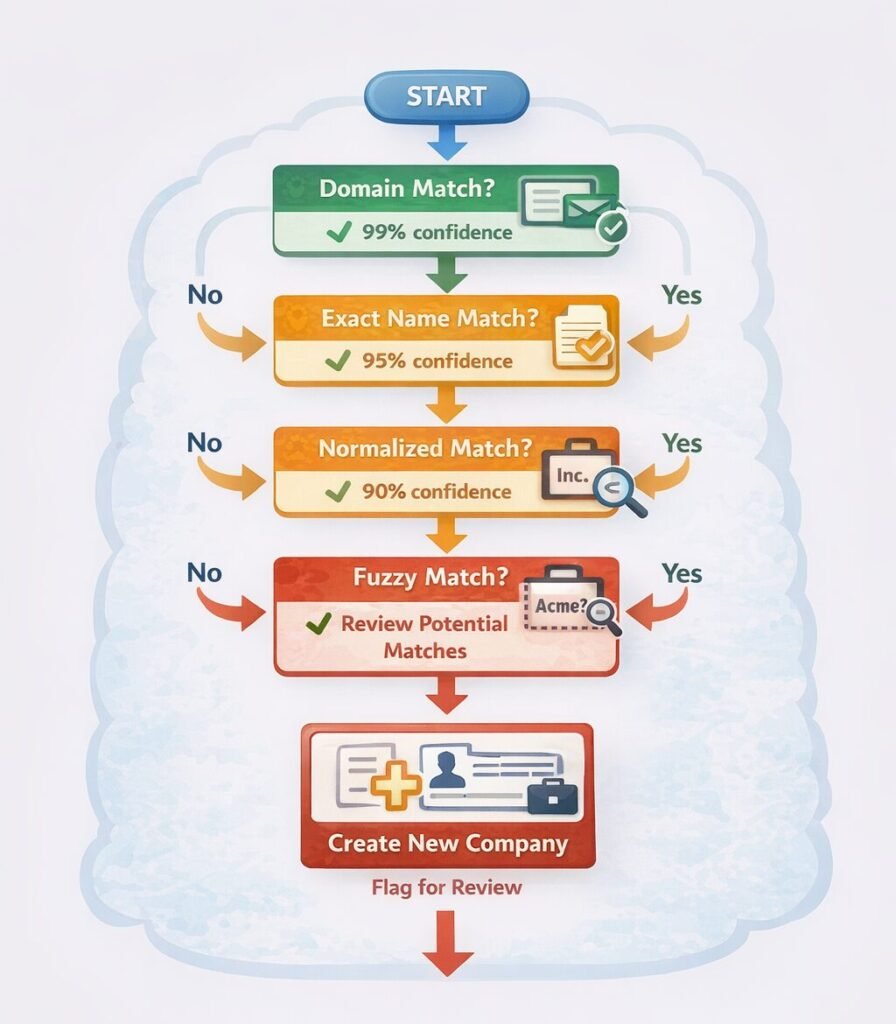
Combine all methods for maximum accuracy:
```
Hybrid company matching workflow:

Step 1: Domain Match (if email available)
  - Extract domain from email
  - Query companies by domain
  - If single match → DONE (99% confidence)
  - If no match → Continue to Step 2

Step 2: Exact Name Match
  - Query companies by exact name
  - If single match → DONE (95% confidence)
  - If no match → Continue to Step 3

Step 3: Normalized Name Match
  - Remove entity types, normalize spacing
  - Query companies by normalized name
  - If single match → DONE (90% confidence)
  - If no match → Continue to Step 4

Step 4: Fuzzy Name Match
  - Calculate similarity scores with all companies
  - If score > 90% AND single match → DONE (85% confidence)
  - If score > 85% AND multiple matches → Manual review queue
  - If score < 85% → Continue to Step 5

Step 5: Create New Company
  - No match found through any method
  - Create new company record
  - Flag for later review (possible duplicate requiring manual verification)
```

This multi-tier approach prevents false matches (accidentally merging different companies) while minimizing false negatives (creating duplicates of existing companies).

Implementing these algorithms alongside your [field naming standards](#) creates a robust duplicate prevention system.

---

## Import Field Mapping Best Practices

CSV imports are a major duplicate source when mapped incorrectly. Following your [field structure guidelines](#), proper import mapping prevents thousands of duplicates.

### Pre-Import Data Standardization

Clean data before mapping begins:

**Step 1: Validate required fields**
```
Required field checklist:
☑ Email column exists and contains valid email addresses
☑ Contact name columns (First Name + Last Name OR Full Name for splitting)
☑ Company name column (if B2B)
☐ Phone column (optional but recommended)

Validation query:
- Count rows with missing email: Should be 0%
- Count rows with invalid email format: Should be <1%
- Count rows with missing name: Should be 0%
```

**Step 2: Standardize formats**

Before import, clean data:
```
Email standardization:
- Convert to lowercase: "John@Acme.com" → "john@acme.com"
- Trim whitespace: " john@acme.com " → "john@acme.com"
- Remove duplicates within import file

Company standardization:
- Apply normalization: "Acme Corp." → "Acme"
- Title case: "ACME CORPORATION" → "Acme"
- Consolidate variations: Multiple rows for "Acme Corp", "Acme Corporation", "Acme" → Single "Acme"

Name standardization:
- Title case: "john smith" → "John Smith", "MARY JOHNSON" → "Mary Johnson"
- Split full names if needed: "John Smith" → "John" + "Smith"
```

**Step 3: Deduplicate import file**

Remove duplicates within the import file before uploading to CRM:
```
Deduplication within import file:
1. Sort by email
2. Identify rows with duplicate emails
3. Merge duplicate rows (keep most complete data)
4. Result: One row per unique email

Example:
Row 1: john@acme.com, John, Smith, Acme, VP Sales
Row 2: john@acme.com, John, Smith, , (missing company and title)

After merge:
Row: john@acme.com, John, Smith, Acme, VP Sales (most complete)
```

This prevents importing 10,000 rows where 2,000 are duplicates within the file itself.

### Import Mapping Configuration

**Mapping approach 1: Use import wizard with field matching**

Most CRMs provide import wizards:
```
Import wizard steps:
1. Upload CSV file
2. Map columns to CRM fields:

   CSV Column         CRM Field              Notes
   ───────────────────────────────────────────────────────
   Email           → Email                  (Dedup key)
   First Name      → First Name             (Standard field)
   Last Name       → Last Name              (Standard field)
   Company         → Company (lookup)       (Match existing OR create new)
   Title           → Job Title              (Standard field)
   Phone           → Phone                  (Standard field)

3. Configure deduplication:
   ☑ Match on Email (update if exists, create if new)
   ☑ Match companies by name (with fuzzy matching)

4. Preview and validate
5. Execute import
```

**Mapping approach 2: Create data transformation template**

For recurring imports, create reusable template:
```
Template: Trade Show Lead Import

Source columns expected:
- Full Name
- Email
- Organization
- Job Title
- Booth Interaction

Transformation logic:
1. Split Full Name → First Name + Last Name
2. Map Email → Email (dedup key)
3. Match Organization → Company lookup
4. Map Job Title → Job Title
5. Map Booth Interaction → Lead Source = "Trade Show [Event Name]"
6. Set Lifecycle Stage = "Lead"
7. Set Lead Source Detail = Booth interaction notes

Saves 20-30 minutes per import by reusing configuration
```

### Handling Import Errors and Exceptions

Not all rows import successfully. Handle failures:

**Error type 1: Required field missing**
```
Row 547: Email is blank
Action: Skip row, log error
Resolution: Manually obtain email and create contact OR discard lead
```

**Error type 2: Invalid format**
```
Row 892: Email "john.smith" (missing @domain)
Action: Skip row, log error
Resolution: Correct email format and re-import
```

**Error type 3: Company match ambiguous**
```
Row 1034: Company "ABC" matches 3 companies (ABC Corp, ABC Industries, ABC Services)
Action: Queue for manual review
Resolution: User selects correct company from options
```

**Error type 4: Duplicate within import**
```
Row 245: john@acme.com
Row 678: john@acme.com (duplicate of row 245)
Action: Merge rows before import (keep most complete)
Resolution: Import single merged row
```

**Import error report:**
```
Import Summary:
━━━━━━━━━━━━━━━━━━━━━━━━━━━━━━━
Total rows in file: 5,000
Successfully imported: 4,687 (93.7%)
Skipped (errors): 313 (6.3%)

Error breakdown:
- Missing email: 145 rows
- Invalid email format: 82 rows
- Ambiguous company match: 54 rows
- Duplicate within file: 32 rows

Action required:
- Review error log: errors_2024_02_24.csv
- Correct errors and re-import failed rows
```

This transparency allows fixing issues without corrupting CRM with bad data.

---

## Integration Field Mapping Patterns

Integrations sync data continuously, so mapping errors multiply over time.

### Bi-Directional Sync Field Mapping

When two systems sync in both directions, field mapping must prevent infinite loops:

**Scenario: CRM ↔ Marketing Automation Sync**

**Challenge:**
- Contact created in CRM → Syncs to Marketing Automation
- Marketing Automation enriches contact → Syncs back to CRM
- CRM sees "update" → Syncs back to Marketing Automation
- Loop continues infinitely

**Solution: Field-level sync direction control**
```
Field sync configuration:

Field              CRM → MA    MA → CRM    Reasoning
─────────────────────────────────────────────────────────────
Email              ✓           ✗           CRM is master for contact info
First Name         ✓           ✗           CRM is master
Last Name          ✓           ✗           CRM is master
Lifecycle Stage    ✗           ✓           MA is master (tracks engagement)
Lead Score         ✗           ✓           MA calculates score
Email Opt-In       ↔           ↔           Bi-directional (changes in either)
Last Activity Date ✗           ✓           MA tracks email activity
Company            ✓           ✗           CRM is master for relationships
```

Legend:
- ✓ = One-way sync (master to slave)
- ✗ = No sync
- ↔ = Bi-directional sync

This prevents sync loops by establishing master system per field.

**Loop prevention timestamp strategy:**
```
Sync logic with timestamp checking:

Before syncing field:
1. Check last_modified_timestamp on both systems
2. If CRM timestamp > MA timestamp → Sync CRM → MA
3. If MA timestamp > CRM timestamp → Sync MA → CRM
4. If timestamps equal → No sync needed (already in sync)

Prevents: Syncing unchanged data and creating unnecessary update loops
API Integration Field Mapping
When integrating via API, mapping happens in code:
Example: Webhook from webinar platform to CRM
// Webhook payload from webinar platform
{
  "attendee_email": "john@acme.com",
  "attendee_name": "John Smith",
  "company_name": "Acme Corporation",
  "webinar_title": "Product Demo - Jan 2025",
  "attended": true,
  "watch_duration_minutes": 42
}

// Field mapping logic
async function handleWebinarAttendance(webhookPayload) {

  // Step 1: Parse source data
  const email = webhookPayload.attendee_email.toLowerCase().trim();
  const fullName = webhookPayload.attendee_name;
  const [firstName, ...lastNameParts] = fullName.split(' ');
  const lastName = lastNameParts.join(' ');
  const companyName = webhookPayload.company_name;

  // Step 2: Find or create contact
  let contact = await findContactByEmail(email);

  if (!contact) {
    // Create new contact
    contact = await createContact({
      email: email,
      firstName: firstName,
      lastName: lastName,
      lifecycleStage: 'Lead',
      leadSource: 'Webinar'
    });
  }

  // Step 3: Find or create company
  let company = await findCompanyByName(companyName);

  if (!company) {
    company = await createCompany({
      name: normalizeCompanyName(companyName)
    });
  }

  // Step 4: Associate contact with company
  if (contact.companyId !== company.id) {
    await updateContact(contact.id, {
      companyId: company.id
    });
  }

  // Step 5: Create webinar attendance record
  await createActivity({
    contactId: contact.id,
    companyId: company.id,
    type: 'Webinar',
    subject: webhookPayload.webinar_title,
    completed: webhookPayload.attended,
    duration: webhookPayload.watch_duration_minutes,
    date: new Date()
  });

  // Step 6: Update engagement score
  await updateContact(contact.id, {
    engagementScore: contact.engagementScore + 10 // Bonus for webinar attendance
  });
}
This API integration:
- Prevents duplicate contacts (email matching)
- Prevents duplicate companies (name matching with normalization)
- Creates proper object associations (contact → company)
- Logs engagement activity
- Updates engagement metrics
Error handling in integrations:
async function handleWebinarAttendance(webhookPayload) {
  try {
    // Mapping logic here...

  } catch (error) {
    // Log error for debugging
    console.error('Webinar webhook processing failed:', {
      payload: webhookPayload,
      error: error.message,
      timestamp: new Date()
    });

    // Queue for retry
    await queueFailedWebhook(webhookPayload, error.message);

    // Alert admin if critical
    if (isCriticalError(error)) {
      await sendAlertEmail({
        subject: 'CRM Integration Error',
        body: `Webinar webhook failed: ${error.message}`
      });
    }
  }
}
```

Robust error handling prevents failed syncs from silently corrupting data.

---

> **✅ Best Practice: The "Test Integration with Duplicates" Rule**
>
> Before enabling any integration in production, test with data containing intentional duplicates. Send the same contact through the integration 5 times and verify only 1 CRM record is created/updated. This catches mapping errors before they create thousands of duplicates in production.

---

## Field Mapping Audit and Monitoring

Field mapping isn't set-and-forget. Continuous monitoring catches mapping drift before it creates duplicate problems.

### The Monthly Mapping Audit

**Audit checklist:**
```
Monthly Field Mapping Audit - [Date]

WEB FORMS
☐ Contact form → Email field maps to standard Email field
☐ Contact form → Company maps to Company lookup (not text field)
☐ Contact form → Name parsing works correctly (First + Last)
☐ Duplicate detection enabled (email-based matching)
☐ Test submission: Verify no duplicate created

MARKETING AUTOMATION
☐ Email field bi-directional sync working
☐ Company association syncing correctly
☐ Lifecycle stage mapping matches expected values
☐ Lead score syncing without errors
☐ Check error logs for sync failures

CSV IMPORTS
☐ Latest import mapping template reviewed
☐ Import error rate <5%
☐ Company matching working (not creating duplicate companies)
☐ Required fields enforced

INTEGRATIONS (API)
☐ Webhook endpoints responding correctly
☐ Error rate <1% for API calls
☐ Retry logic functioning for failed syncs
☐ Object associations creating properly (contact → company)

DEDUPLICATION METRICS
☐ Duplicate rate: [Current %] (Target: <5%)
☐ New duplicates created this month: [Count]
☐ Source of duplicates identified: [Web form / Import / Integration]
☐ Corrective action taken: [Description]
```

**Audit frequency:**
- First 3 months after new integration: Weekly
- Months 4-12: Bi-weekly
- After 12 months with <2% duplicate rate: Monthly

### Automated Mapping Health Monitoring

Set up automated alerts for mapping failures:

**Alert 1: Duplicate creation spike**
```
Trigger: New duplicate records > 50 per day
Alert: Email to CRM Admin + Sales Ops Manager
Message: "Duplicate creation spike detected. 127 duplicates created in last 24 hours.
         Primary source: Web contact form. Review field mapping immediately."

Investigation: Check recent form submissions for mapping errors
```

**Alert 2: Required field population drop**
```
Trigger: Contacts created with blank Email field > 5%
Alert: Email to CRM Admin
Message: "Required field not populating. 15% of contacts created today have blank email.
         Check web form to Email field mapping."

Investigation: Review form field mapping configuration
```

**Alert 3: Company association failure**
```
Trigger: Contacts created without company association > 20%
Alert: Email to CRM Admin
Message: "Company mapping failing. 34% of contacts created today lack company association.
         Company field may be mapping to text instead of lookup."

Investigation: Check company field mapping on all data sources
```

**Alert 4: Integration sync errors**
```
Trigger: API integration errors > 10 per hour
Alert: Slack notification to #crm-alerts channel
Message: "Marketing automation sync errors spiking. 23 errors in last hour.
         Check integration logs."

Investigation: Review API error logs for mapping-related failures
```

These automated alerts catch mapping problems within hours instead of discovering them months later during data quality audits.

### The Field Mapping Change Log

Maintain documentation of all mapping changes:
```
FIELD MAPPING CHANGE LOG

Date: 2024-02-24
Changed by: Sarah Johnson, CRM Administrator
Integration: HubSpot Marketing Automation → Salesforce CRM

Change:
BEFORE: HubSpot "Company" field → Salesforce "Company_Name__c" (custom text field)
AFTER: HubSpot "Company" field → Salesforce "Account" (standard lookup field)

Reason:
Previous mapping created text field instead of account association, causing duplicate companies
and preventing proper reporting on accounts.

Impact:
- Existing contacts: 12,400 contacts had company in text field
- Migration: Matched 89% to existing accounts, created 11% new accounts
- Future contacts: Will properly associate with account records

Testing:
- Test sync with 10 contacts: ✓ All properly associated with accounts
- Verified no duplicate accounts created: ✓ Passed
- Checked rollback procedure: ✓ Documented

Approved by: Mike Chen, VP Sales Operations
```

This change log enables:
- Understanding why mappings changed
- Troubleshooting issues introduced by changes
- Rollback if changes cause problems
- Knowledge transfer when admins change

Return to your [complete CRM architecture guide](#) to see how field mapping fits into overall system design.

---

## Field Mapping Anti-Patterns

Common mapping mistakes that guarantee duplicates:

### Anti-Pattern 1: The Text Field Shortcut

**What it looks like:**

Mapping all source fields to text fields rather than proper field types:
```
Source: Company name → CRM: Company_Name__c (text field)
Source: Email → CRM: Email_Address__c (text field)
Source: Phone → CRM: Phone_Number__c (text field)
```

**Why it fails:**
- Bypasses CRM's built-in duplicate detection (which uses standard fields)
- Prevents relationship formation (no company object association)
- Breaks automation (workflows trigger on standard field updates)

**Fix:** Map to standard CRM fields:
```
Source: Company name → CRM: Account (standard lookup)
Source: Email → CRM: Email (standard email field)
Source: Phone → CRM: Phone (standard phone field)
```

### Anti-Pattern 2: The "Always Create New" Mode

**What it looks like:**

Integration configured to always create new records instead of checking for existing:
```
Integration setting: "Insert Only" (instead of "Upsert")

Result:
- Every sync creates new record
- Even if email already exists in CRM
- Duplicate count grows by 100-500+ daily
```

**Why it fails:**
- No deduplication logic
- Each source system event creates new CRM record
- Database fills with duplicates

**Fix:** Use upsert mode:
```
Integration setting: "Upsert" or "Update or Insert"
Match key: Email field
Logic: IF email exists → Update record, ELSE → Create new record

Result: One CRM record per unique email, regardless of sync frequency
```

### Anti-Pattern 3: The Case-Sensitive Matching

**What it looks like:**

Matching using case-sensitive comparison:
```
Source: john@acme.com
CRM: John@Acme.com
Match logic: john@acme.com == John@Acme.com → FALSE (case-sensitive)
Result: Creates duplicate (treats as different emails)
```

**Why it fails:**
- Email standards are case-insensitive (john@acme.com = John@Acme.com)
- Case-sensitive matching creates duplicates of same person
- Users don't consistently use same capitalization

**Fix:** Use case-insensitive matching:
```
Match logic: LOWER(source.email) == LOWER(crm.email)
Example: LOWER(john@acme.com) == LOWER(John@Acme.com) → TRUE
Result: Correctly identifies as same email, updates existing record
```

### Anti-Pattern 4: The Partial Email Matching

**What it looks like:**

Matching on partial email or email domain only:
```
Source: john.smith@acme.com
Match logic: CONTAINS(crm.email, 'acme.com')
Matches: john.smith@acme.com, jane.doe@acme.com, mike.wilson@acme.com (all match)
Result: Associates source contact with wrong existing contact
```

**Why it fails:**
- Domain matching catches multiple people at same company
- Updates wrong person's record with source data
- Creates data corruption (John Smith's data overwrites Jane Doe's record)

**Fix:** Use exact full email matching:
```
Match logic: source.email == crm.email (exact match)
Example: john.smith@acme.com only matches john.smith@acme.com
Result: Updates correct person's record, no data corruption
```

### Anti-Pattern 5: The Forgotten Data Type Conversion

**What it looks like:**

Source and CRM have different data types for same field:
```
Source: Employee Count = "500" (text/string)
CRM: Employee Count = Number field
Mapping: Direct mapping without conversion
Result: Mapping fails, field stays empty OR converts incorrectly
```

**Why it fails:**
- CRM rejects text value for number field
- Field remains unpopulated
- Reporting breaks (can't calculate averages on empty field)

**Fix:** Add data type conversion:
```
Mapping logic:
1. Parse source "500" to integer 500
2. Validate it's numeric (reject "Around 500")
3. Map converted value to CRM number field

Result: CRM receives proper integer value, reporting works
Next Steps: Implementing Proper Field Mapping
You now understand field mapping strategies that prevent duplicates at scale. Time to implement:
Immediate actions (This week):
- Audit current integrations – List all data sources (forms, integrations, imports)
- Review field mappings – Check if mappings use standard fields or custom fields
- Test deduplication – Send duplicate data through each source, verify only 1 record created
- Document findings – Identify which sources create duplicates
Within 30 days:
- Fix highest-volume source first (web forms typically create most duplicates)
- Implement company matching algorithm (exact → normalized → fuzzy)
- Configure upsert mode for all integrations (update existing vs. always create new)
- Add automated duplicate rate monitoring alerts
- Create field mapping change log process
Within 90 days:
- Migrate all data sources to proper field mapping
- Achieve <5% duplicate rate (down from typical 15-35%)
- Implement monthly field mapping audit process
- Create standardized import templates for recurring imports
- Train team on proper import procedures
Ongoing maintenance:
- Monthly field mapping audits
- Quarterly review of duplicate rate trends
- Test all new integrations with duplicate data before production deployment
- Update field mapping documentation as changes occur
- Review integration error logs weekly for mapping failures
Coordinate field mapping improvements with your duplicate prevention strategy and naming conventions for comprehensive data quality.
Field Mapping as Duplicate Prevention Infrastructure
Field mapping isn’t a one-time configuration task—it’s ongoing infrastructure requiring continuous maintenance and monitoring.
The companies my team works with that implement rigorous field mapping discipline experience:
- 70-85% reduction in duplicate records versus ad-hoc mapping
- 95%+ automatic deduplication rates (only 5% requiring manual review)
- 60-80% fewer data quality issues due to proper field type usage
- 50-70% faster integration setup due to reusable mapping templates
Your field mapping strategy determines whether data sources enhance your CRM or pollute it with duplicates. Map correctly from day one, monitor continuously, and enforce standards rigorously.
Need help auditing and fixing field mapping across your data sources? Schedule a consultation to review your integration architecture.

The Sports Angel Team is a group of technology specialists, software consultants and digital business advisors with combined experience across hundreds of implementations for small businesses, agencies and startups across the United States. Every tool we review is tested firsthand before we recommend it.